

Until I began to pay more attention to how I worked, I didn’t know how much time I had been wasting looking for files. I opened screenshots, unfinished documents, downloaded PDFs, browser files and even random folders every day from my desktop. After every couple of days, my screen was just overloaded with lots of stuff.
- What is iTop Easy Desktop?
- My First Impressions After Installing It
- Features of iTop Easy Desk I Used Most Often
- How I Organized My Desktop Using iTop Easy Desktop?
- Install and Open the Program
- Create Separate Desktop Boxes
- Move Files Into Categories
- Customize the Layout
- PawPal: A Virtual Desktop Pet
- Who I Think Should Use It?
- Final Thoughts
It was not just the mess that was bad. It was also about the time that I used to waste looking for things at work. At times, I would try to minimize several windows to be able to search for one file among hundreds of icons.
One day, during a screen-sharing meeting, I was just getting frustrated as I was unable to find what I needed. This is when I gave iTop Easy Desktop a shot. I didn’t want to use something that would require a complex system to organize my desktop. Here is my honest experience using it.
What is iTop Easy Desktop?
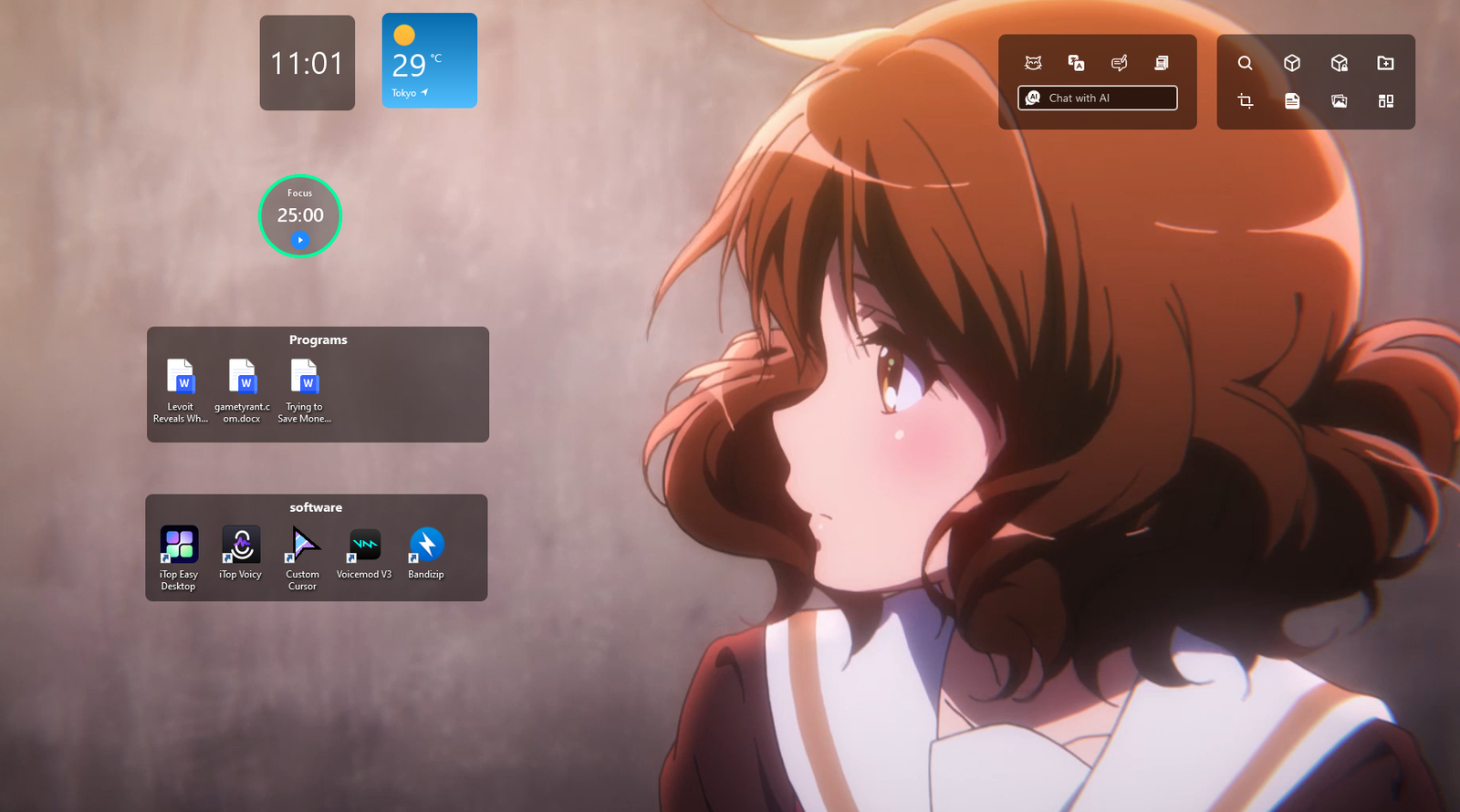
iTop Easy Desktop is a desktop organizer software for Windows OS that helps users to easily manage their cluttered desktop.
The software lets users organize files and shortcuts into neat desktop boxes, rather than having them littered around. These sections can be customized based on personal workflow. The tool has the following features:
- Desktop icon grouping
- Automatic organization
- Quick-access panels
- One-click desktop hiding
- Layout customization
- Lightweight background performance
I mainly used it while managing writing projects, downloads, meeting files, and screenshots.
My First Impressions After Installing It
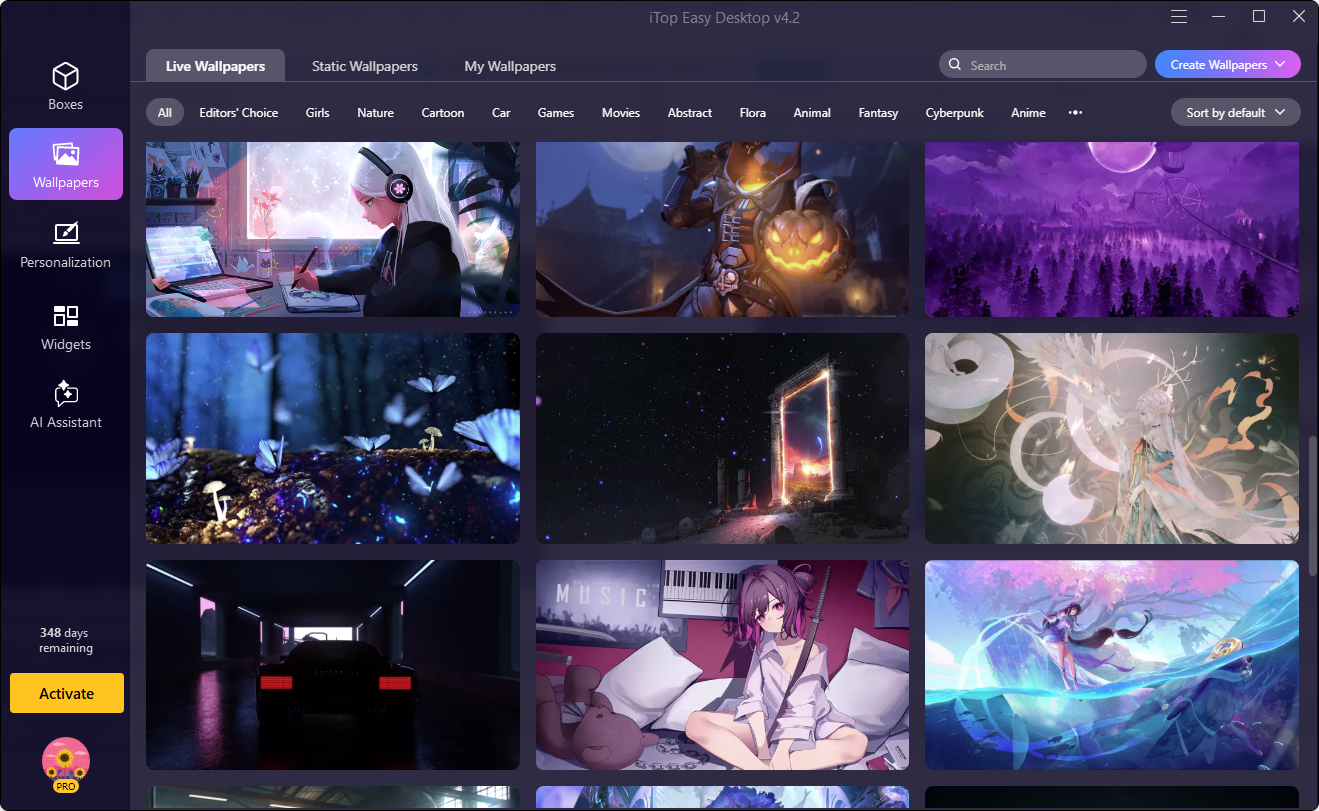
The installation process was simple and quick. Once I started the software, I saw how easy it is to understand. It didn’t overwhelm me with advanced settings and complicated menus.
The program automatically scanned my desktop and proposed some organization of files. I really enjoyed the fact that I didn’t have to automatically categorize it all, but could instead do it manually as well.
I also like the fact that the software didn’t slow down my PC. Most importantly, the tool is free to download and use to organize the desktop. Typically, I have a bunch of internet browsers and writing tools open, but it still worked just fine.
Features of iTop Easy Desk I Used Most Often
After testing the software during regular workdays, these were the features I relied on the most.
Desktop Grouping Boxes
This was the primary reason that I continued to use the software.
I could easily access grouped files from the desktop without having to open folders repeatedly. It helps to keep things tidy. I also enjoyed the ability to collapse sections whenever I need a cleaner view.
Automatic Sorting
I tried the auto-organize feature after downloading some files for a writing project. The software was able to successfully cluster the majority of the files with minimal manual editing. This spared me the task of doing everything myself every couple of days.
Hide Desktop Icons Instantly
This feature proved to be very useful during online meetings. Before I shared my desktop, I could click once to remove all of them. It really cleaned up my workspace and made it look more professional.
Quick Access Area
I opened the same folders regularly at work, so it was good to have the quick access feature. I did not have to reopen File Explorer every time to access important folders contained in the file system.
How I Organized My Desktop Using iTop Easy Desktop?
Here is the exact process I followed when setting everything up.
Install and Open the Program
I visited the official website and downloaded the installer. Then I installed it within minutes. When I opened the app, it displayed all the icons and files currently sitting on my desktop.
Create Separate Desktop Boxes
I was able to make several categories on the desktop using the software. I have added divisions for:
- Work documents
- Screenshots
- Writing drafts
- Personal files
- Frequently used apps
Seeing everything separated instantly made my desktop look less stressful.
Move Files Into Categories
Then, I dragged files that were related into their respective sections. This part was a bit of a chore as my desktop was cluttered with months of junk. As soon as the files were organized correctly, locating files was a breeze.
Customize the Layout
Once all the items were sorted, I moved each box to its new location.
I pushed my work files towards the left edge of the desktop and my commonly used apps towards the lower corner of the screen for easy access. Actually, this little tweak in the setup was a lot more than it was expected to be in terms of improving my daily workflow.
PawPal: A Virtual Desktop Pet
One feature I didn’t expect to use much was the built-in desktop pet called PawPal.
At first, I thought it was just a small, fun addition, but after using it for a while, I actually liked having it on my screen. PawPal appears as a small animated pet on the desktop. It gently moves around and responds naturally without causing obstructions.
I enjoyed most was that it wasn’t distracting. It remained in the background, enhancing the desktop with some life but not interfering with anything. It’s very nice that it runs smoothly. I haven’t seen any lag or performance problems using it with other apps.
As far as I can tell, more characters will be added soon. The tool may even offer the ability to select one’s own pet images soon.
Who I Think Should Use It?
Based on my experience, I think this software works best for:
- Remote workers
- Students
- Writers and editors
- Designers
- Users with cluttered desktops
- People who frequently share their screens
It is especially useful for users who constantly save temporary files directly to their desktops.
Final Thoughts
I’ve been working with iTop Easy Desktop daily, and it really helped me save a lot of desktop clutter and wasted time. It didn’t revolutionize my work processes, but it did make my work area cleaner, easier to manage, and less distracting on busy work days. So, overall, I believe it is a good solution that can improve productivity.